What is CampaignPulse?
CampaignPulse validates lead lists against campaign targeting criteria. It checks each lead's job title, function, level, industry, geography, company size, and more — then gives each lead a confidence score and status.
1Campaign Setup — Load requirements from Excel or enter criteria manually
2Upload Leads — Upload the CC's Report Template (CSV or Excel)
3Compare — Choose AI mode and run the comparison
+Optional — Add NAC/SUP lists, returns data, initial RT for deeper validation
The system auto-detects column types (title, email, country, etc.) — no manual mapping needed.
Step-by-Step Workflow
- Load the Campaign Excel — targeting criteria, delivery info, and file links are auto-extracted
- Upload NAC / SUP files if provided — used for named account and suppression checks
- Upload the Lead Template (Initial RT) — establishes approved column values for RT validation
- Add campaign assets (optional) — in the Campaign Assets & Intelligence card, upload PDFs/docs or paste URLs, then click Analyze Assets
- Upload the CC's Report Template — the lead file to be checked
- Select AI mode and click Compare Leads
- Review results — use filter tabs (Pass / Review / Fail), click cells for detail panels
- Export CSV with statuses, scores, and key reasons
The "Batch Intelligence Dashboard" (shown above results) provides aggregate insights: top failure reasons, company concentration, and recommendations.
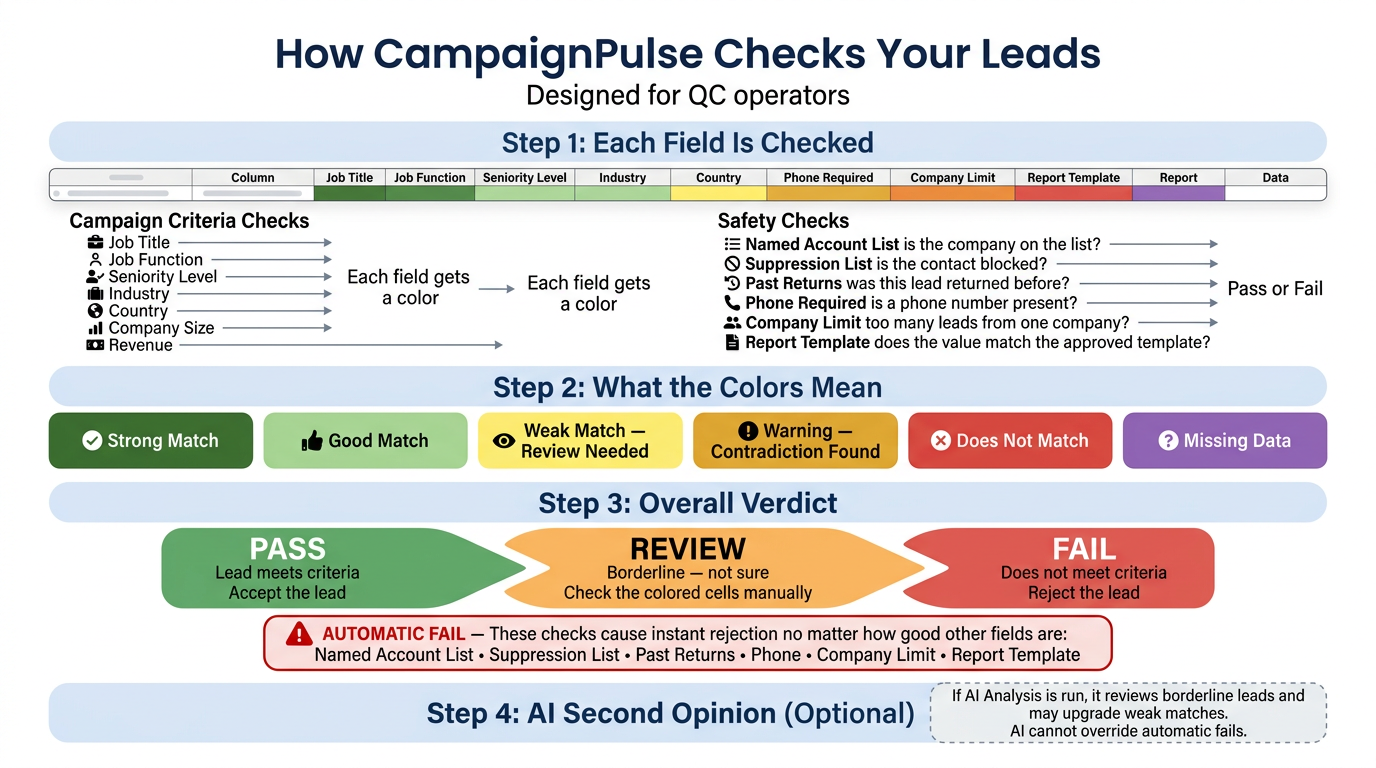
Lead Statuses
| Status | Score Range | What it means |
|---|
| Pass | 70-100 | Lead meets all criteria with High or Medium match strengths |
| Review likely pass | 60-69 | Mostly matches but has weak areas — human review recommended |
| Review uncertain | 30-59 | Ambiguous match — needs careful review before acceptance |
| Fail | 0-29 | Clear mismatch on one or more hard criteria |
Cell Colors
Each checked cell shows a color based on how well it matches:
| High | Exact match or same taxonomy branch |
| Medium | Matches via equivalences (e.g., "VP" = "Vice President") |
| Low | Partial overlap — keyword match but different context, needs review |
| Caution | Warning — contradiction detected or risk pattern flagged |
| Mismatch | No match found |
| No Data | Can't determine — field empty or data insufficient |
Subjective criteria (title, industry) can show gradients (High → Low), while objective criteria (country, size) are pass/fail. Click any cell to see the full explanation.
Confidence Score
Each lead gets a 0-100 score based on weighted strengths across all criteria. Title (30%) and Industry (20%) carry the most weight, followed by Country (15%), then Level, Function, and Employee Size (10% each), and Revenue (5%).
Automatic Fails
These checks cause instant FAIL regardless of how well other criteria match:
| NAC | Lead is NOT on the Named Account List (when required) |
| SUP | Lead IS on the Suppression / Competitor list |
| Returns | Lead's email was found in historical returns |
| Phone | Phone number is missing (when required) |
| Company Limit | Too many leads from the same company |
| RT Values | Report Template value doesn't match the approved list |
AI Analysis Modes
| Mode | Speed | What it does |
|---|
| Browser Only | Instant | Rule-based checks only. No AI cost. Fast but may miss ambiguous cases. |
| Quick Check | ~30-60s | Sends ambiguous/weak leads to AI for refined analysis. Good balance of speed and accuracy. |
| Deep Analysis | ~2-5min | Sends all leads to AI for thorough analysis. Catches subtle mismatches, best for final QC. |
AI results appear with the AI badge. Rule-based results show RULE. AI can upgrade weak matches but cannot override automatic fails (NAC, SUP, Returns, Phone, Company Limit, RT).
Filtering & Export
Global Search
Type in the search bar at the top of the results to instantly filter across all columns. Matches are case-insensitive.
Column Filters
Below each column header is a filter control:
- Multi-select dropdowns — for columns with few unique values (e.g., Country, Industry). Check/uncheck values to show only matching leads.
- Text search — for columns with many values (e.g., Job Title, Company). Type to filter by substring.
- Cell Match Power toggles — the colored buttons (H High, M Medium, L Low, ! Caution, X Mismatch, N No Data) filter by match quality. Click to toggle each level on/off.
- Blank toggle (∅) — show only rows where that column is empty.
- Negate toggle (⊗) — switch from "include" to "exclude" mode. Selected values will be hidden instead of shown.
Quick Filters
The pill buttons in the toolbar provide one-click filtering:
- High / Med / Low — filter by confidence score band (80+, 50-79, 0-49)
- Needs Attention — show leads that passed overall but have individual cell mismatches (edge cases for human review)
- Over Limit — show leads exceeding the per-company lead limit
Stat Cards, Grouping & Columns
- Stat cards — click Pass, Review, or Fail above the table to instantly filter to that status
- Group By — organize rows by any column (Company, Country, Status, etc.). Click group headers to collapse/expand.
- Columns — show/hide specific columns to reduce clutter
Export & Presets
- Export downloads only the currently visible (filtered) leads as CSV. Export All downloads everything — status, confidence score, key reason, and match strengths are all included.
- Presets — save your current filter combination with a name. Load it later with one click. Up to 10 presets stored locally.
Inspecting Leads
Cell Detail Panel
Click any colored cell to open a detail panel with the full analysis from every perspective:
- Found vs. Expected — what the lead says versus what the criteria require
- Explanation — why the match was rated this way
- Analysis by Perspective — separate results from rule-based checks, AI, NAC/SUP, returns, cross-validation, and RT
Lead Breakdown Panel
Click a lead's Status badge or Score to open a full breakdown showing:
- Overall verdict with confidence score bar
- Score breakdown showing how each dimension contributed
- Dimension cards with pass/fail, match power, and explanations
- Asset relevance (if asset intelligence was used)
- Cross-validation notes for any contradictions between columns
Smart Matching
The system uses intelligent matching that goes beyond exact text comparison:
- Industry taxonomy — understands hierarchies (e.g., "SaaS" is under "Technology")
- Seniority ranks — "VP" and "Director" are recognized as adjacent levels, not mismatches
- Returns data — historical patterns and exact email matches both contribute to the risk analysis
Tip: Focus on "Review" leads first — they are borderline and benefit most from human judgment. Results are sorted by status (Fail first) then by score within each group.